
Create and manage groups
A group is an office or team within your organisation, for example Office Ghent. Groups decide who sees what: a property or renovation that you create while working in a group is visible to the members of that group. Groups can have subgroups, and the members of a group also see the work of its subgroups.
Choose the group you work in
At the bottom left, above your name, there’s a button with the name of your group. On your phone, you find that button in the menu, also above your name.
- Choose the button with the name of your group.
- Choose the group or subgroup you want to work in. Do you have many groups? Type part of the name in the search field.
Do you work for more than one organisation? Then you see “Switch organization” at the bottom of the list, with your other organisations below it. Choose the organisation you want to work in.
Can’t see the button? Expand your sidebar.
Create a group
Choose your name at the bottom left.
Choose Organisation.
Go to Groups.
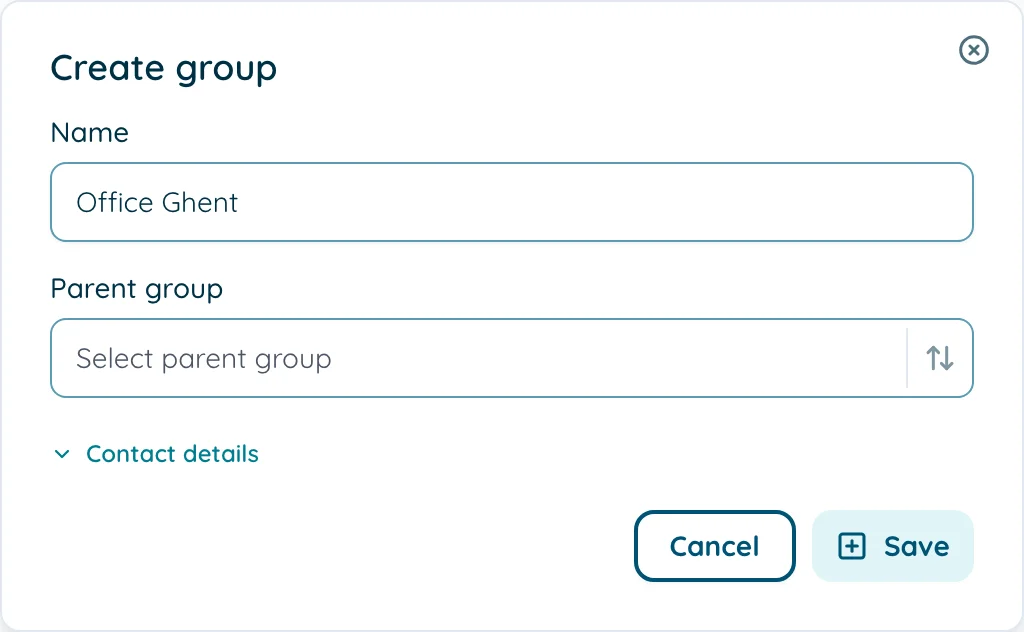
Choose Create group.
Under Name, enter a name, for example the name of the office.
Does the group belong under another group? Choose it under Parent group.
Optional: open Contact details and fill in an address and a reference. These details appear on the renovation report.
Choose Save.
To create a subgroup, choose ⋮ next to a group, then Open. Create the group there.
Rename or delete a group
Choose ⋮ next to the group:
- Edit: change the name or the contact details. You can’t move a group under another parent group.
- Delete: delete the group. This only works when the group has no subgroups and no members left. Remove them first.
When you delete a group, its properties and renovations stay with your organisation.
Who can do what
- An Owner or Admin of your organisation can create, rename and delete every group.
- An Owner or Admin of a group can create subgroups, rename that group and manage its members.
- Everyone with a role in your organisation can see the groups.
Want to add colleagues to a group? Read how to invite or remove a colleague.