
Invite or remove a colleague
You manage your colleagues in Setle Hub, under Organisation. Only an Owner of your organisation can invite new colleagues to the organisation.
Invite a colleague
Choose your name at the bottom left.
Choose Organisation.
Go to Employees.
Choose Invite employee.
Enter the email address under Email. The First name and Last name are optional.
Under Role, choose one of these roles. You’ll read below what each role can do.
- Owner
- Admin
- User
Under Language, choose the language of the invitation. It’s English by default.
Choose Send invite.
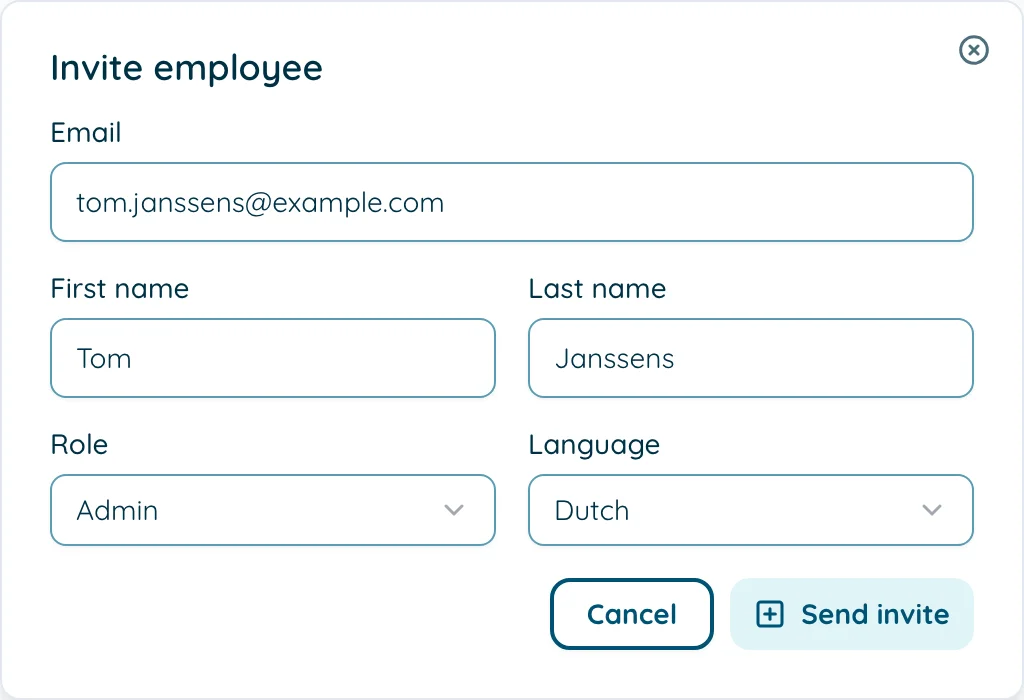
Your colleague gets an email to set a password. Read how the first sign-in works.
Add a colleague to a group
- In Organisation, go to Groups.
- Choose ⋮ next to the group.
- Choose Employees.
- Choose how you add someone. Which button you see depends on your role.
- Invite employee: invite someone new by email.
- Add employee: pick a colleague who already uses Setle.
- Under Role in group, choose one of these roles:
- Owner
- Admin
- Employee
- Confirm.
To change someone’s role in a group, choose ⋮ next to their name, then Change role.
Change someone’s role
An Owner of your organisation can do this. You can’t change your own role.
- Go to Employees.
- Choose ⋮ next to the person, then Edit.
- Choose the new role under Role.
- Choose Save.
Remove a colleague
- First remove the person from every group they’re in. In each group, choose ⋮ next to their name, then Remove from group.
- Then go to Employees.
- Choose ⋮ next to their name, then Delete.
- Confirm.
Seeing “Remove employee from all groups first”? Then the person is still in a group.
Their properties and renovations stay with your organisation, so colleagues can keep working on them.
Good to know: does someone only belong to a group, without a role in the organisation? Then removing them from their last group deletes their account as well.
What each role can do
Owner, Admin and User have the same rights on properties, renovations, reports and sharing. The difference is in managing your organisation.
| What | Owner | Admin | User |
|---|---|---|---|
| Invite colleagues, change their role and delete them | Yes | No | No |
| Create and manage groups | Yes | Yes | No |
| Set up the widget and change the renovation limit | Yes | Yes | No |
| See the dashboard, the usage and the list of colleagues | Yes | Yes | Yes |
A group has its own roles: Owner, Admin and Employee. A group Owner or Admin manages the members and subgroups of that group. A group role also applies to all its subgroups.