
Create a renovation
A renovation is a plan with the works you want to carry out on your property. You start one from your property’s page. You can create several renovations for the same property, for example to compare two options side by side.
Start a renovation
Go to Estates and open your property.
Choose New renovation. The Add your renovation window opens.
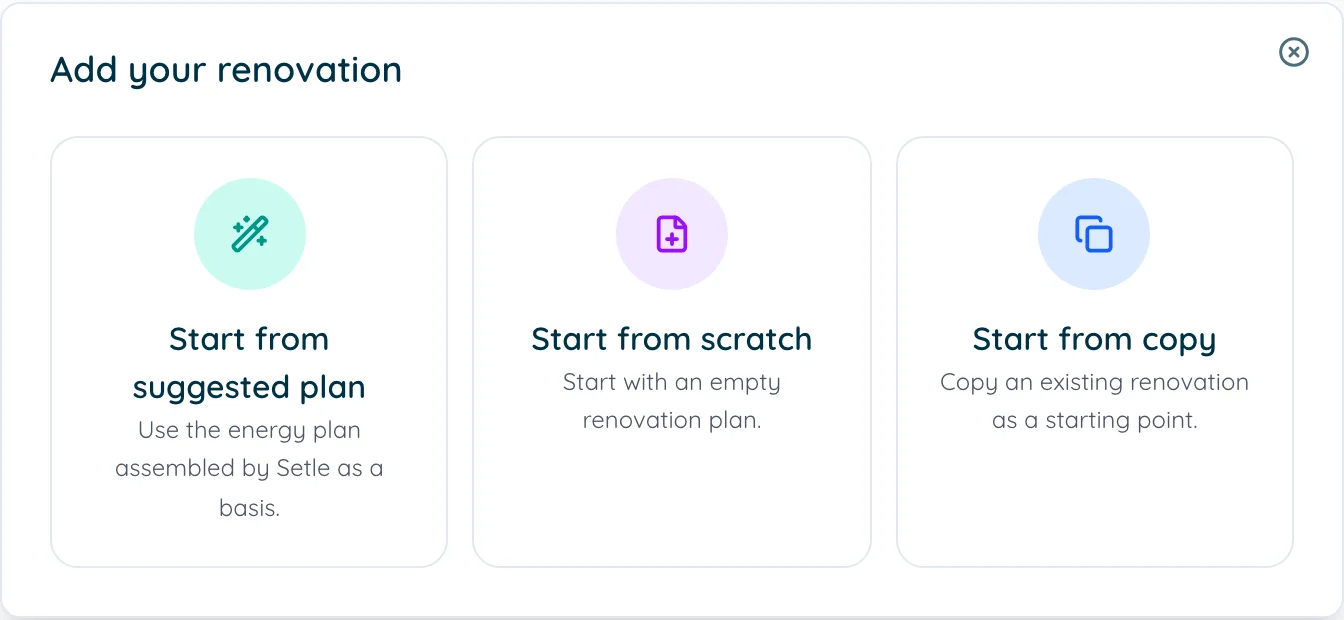
Pick one of the 3 starting points below and give your renovation a name.
Start from suggested plan
You start from the energy plan Setle puts together for your property. What happens depends on what the tile shows:
- Setle has already made a plan: enter a name under Name for the copy and choose Create copy. Your renovation is a copy of the suggested plan and opens on the Start tab.
- Setle hasn’t made a plan yet: choose the tile. Setle calculates the plan and you return to your property’s page. This normally takes a few minutes. The plan then appears under Your renovations.
- The tile shows Refine estate: Setle first needs more details about your property. Choose Refine estate and read how to refine your property.
- The tile is greyed out: Setle is still calculating the plan, or your account can’t start a suggested plan. Start from scratch or from a copy instead.
Still no plan after a while? Email support@setle.app.
Start from scratch
You begin with an empty plan.
- Enter a name under Name your renovation.
- Choose Create renovation.
You then add works yourself from the catalogue.
Start from copy
You start from a renovation you already have. Your original renovation stays as it is.
- Pick the renovation under Select a renovation to copy.
- Choose Next.
- Enter a name under Name for the copy.
- Choose Create copy.