
Remove or add works in your plan
Your plan shows the works Setle suggests, in a logical order, with a guide price and the EPC label after each step. You decide which works stay in it.
Remove or add works
Open your renovation and go to the Plan tab.
Choose Edit plan.
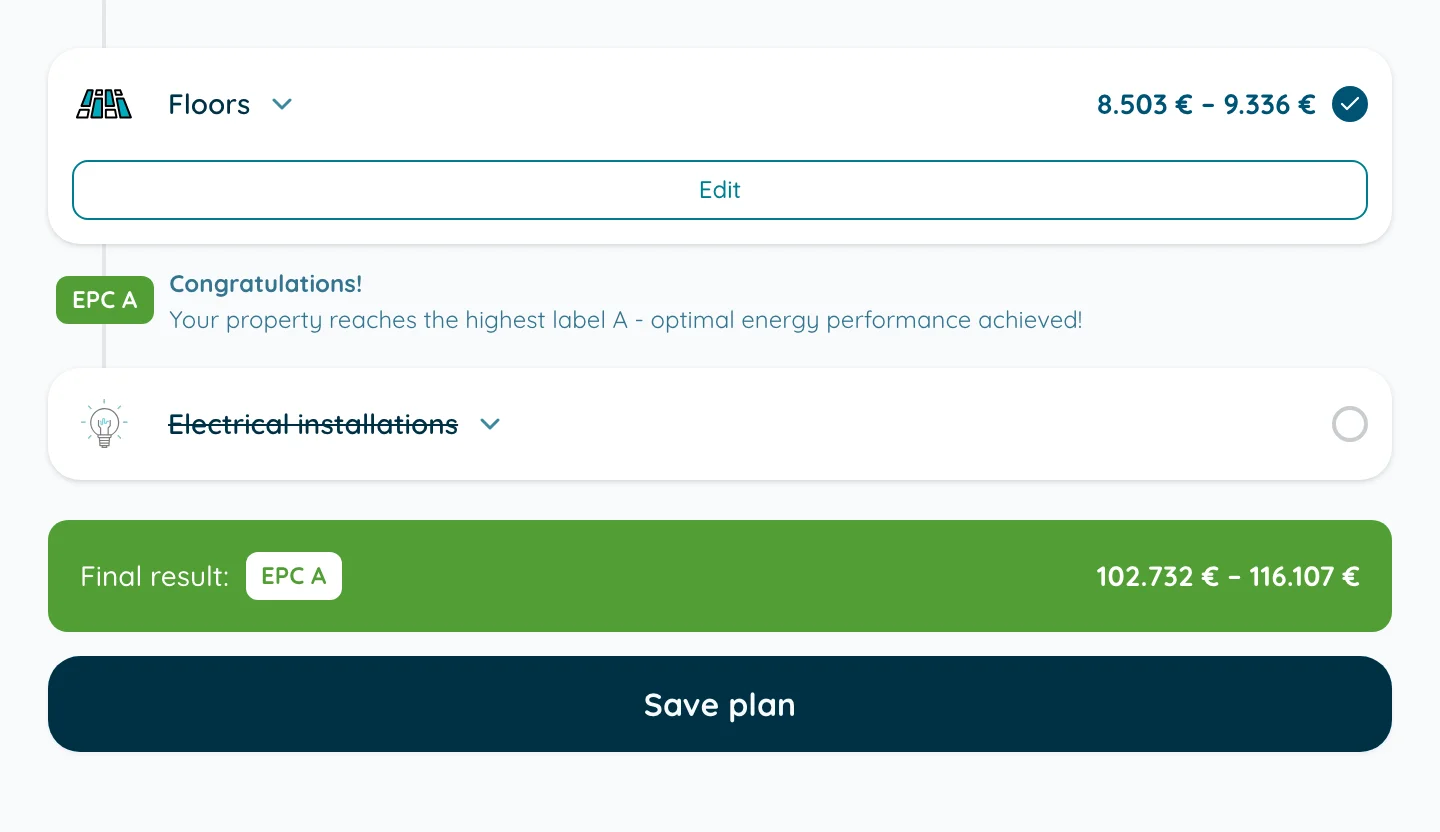
Every part of your home, such as the roof or the walls, now has a round tick on the right. Click it to remove or keep that whole part.
Want to change single works? Open the part and tick works on or off.
Check the new total and the Final result at the bottom. Setle updates the prices and the EPC labels while you edit.
Choose Save plan. Didn’t change anything? Then the button says Done.
Don’t see Edit plan? Then you can only view this renovation.
The final result
The Final result bar at the bottom of your plan shows the EPC label after all works and the total price. Do you also see an energy use in kWh/m² per year? That’s the estimated energy use after your renovation. The percentage in brackets shows how much less that is than today.
Does a step reach the label your region requires? Then that step shows “Target achieved!”. Read what your energy label means.
Works that belong together
Some works only make sense together. If you remove a work, Setle also removes the works that depend on it. For example, without facade insulation you don’t need scaffolding. You’ll recognise these linked works by the small arrow in front of them.
Put a work back
In edit mode, works you removed earlier appear struck through. Tick them to put them back in your plan. Then choose Save plan.
Change the details of a part
Is your roof larger than Setle assumed, for example? Change the details of that part in edit mode.
- Choose Edit on that part. Setle saves your ticks first.
- Answer its questions again. When you’re done, you return to the Plan tab.
Does a part show Add data? Then Setle needs more information to calculate its price. Choose Add data and answer the questions.
Grants and results
The Grants and Results tabs update once you’ve saved your plan. Want works that aren’t in your plan yet? Add them from the catalogue.