
Show a renovation on your website
Available in Silver and Gold
With the widget, you show a renovation on your own website, for example next to the listing of a property you’re selling. Visitors see the estimated costs, the renovation steps and the EPC label after each step. They can’t change anything.
Set up the widget
The first time, an Owner or Admin of your organisation sets up the widget. After that, every colleague can place renovations on the website.
Open the property.
Choose ⋮ next to the renovation.
Choose Set up widget.
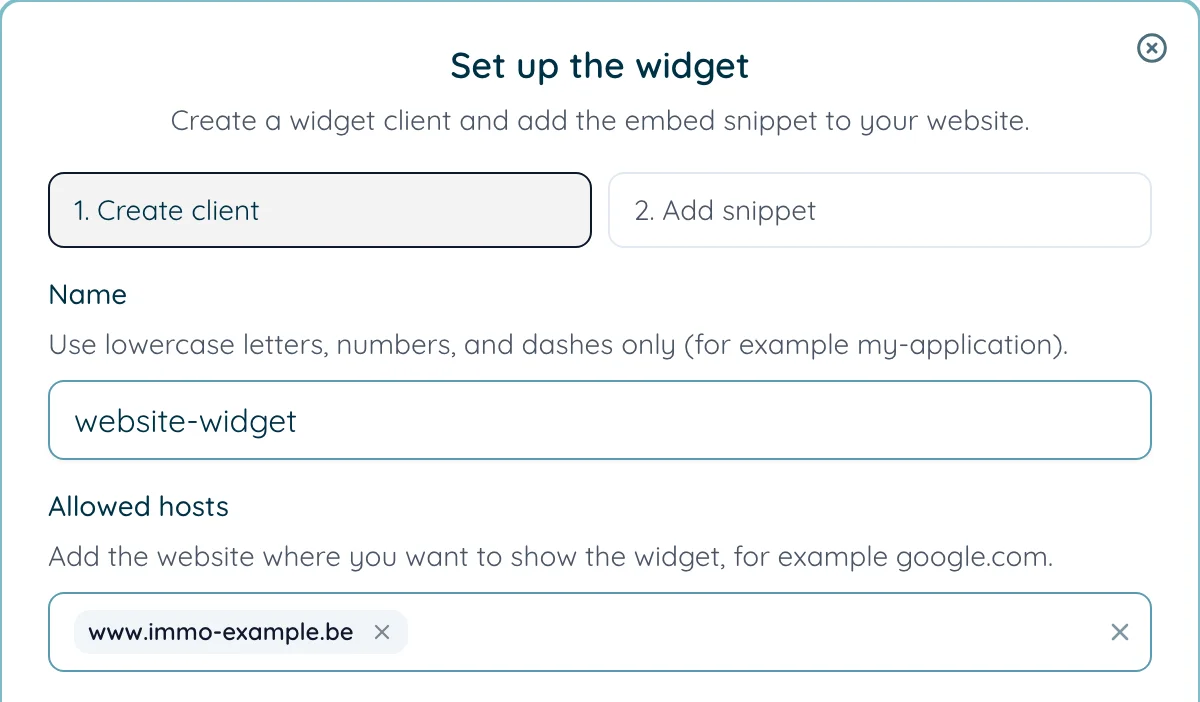
Under Name, a name is already filled in. Want a different one? Use only lowercase letters, numbers and dashes.
Under Allowed hosts, enter your website, for example
www.immo-example.be.Press Enter. The widget only works on the websites you add here.
Choose Create client and continue.
Place a renovation on your website
Choose ⋮ next to the renovation, then Widget. Just set up the widget? Then you’re already in the right place.
Under Website language, choose the language.
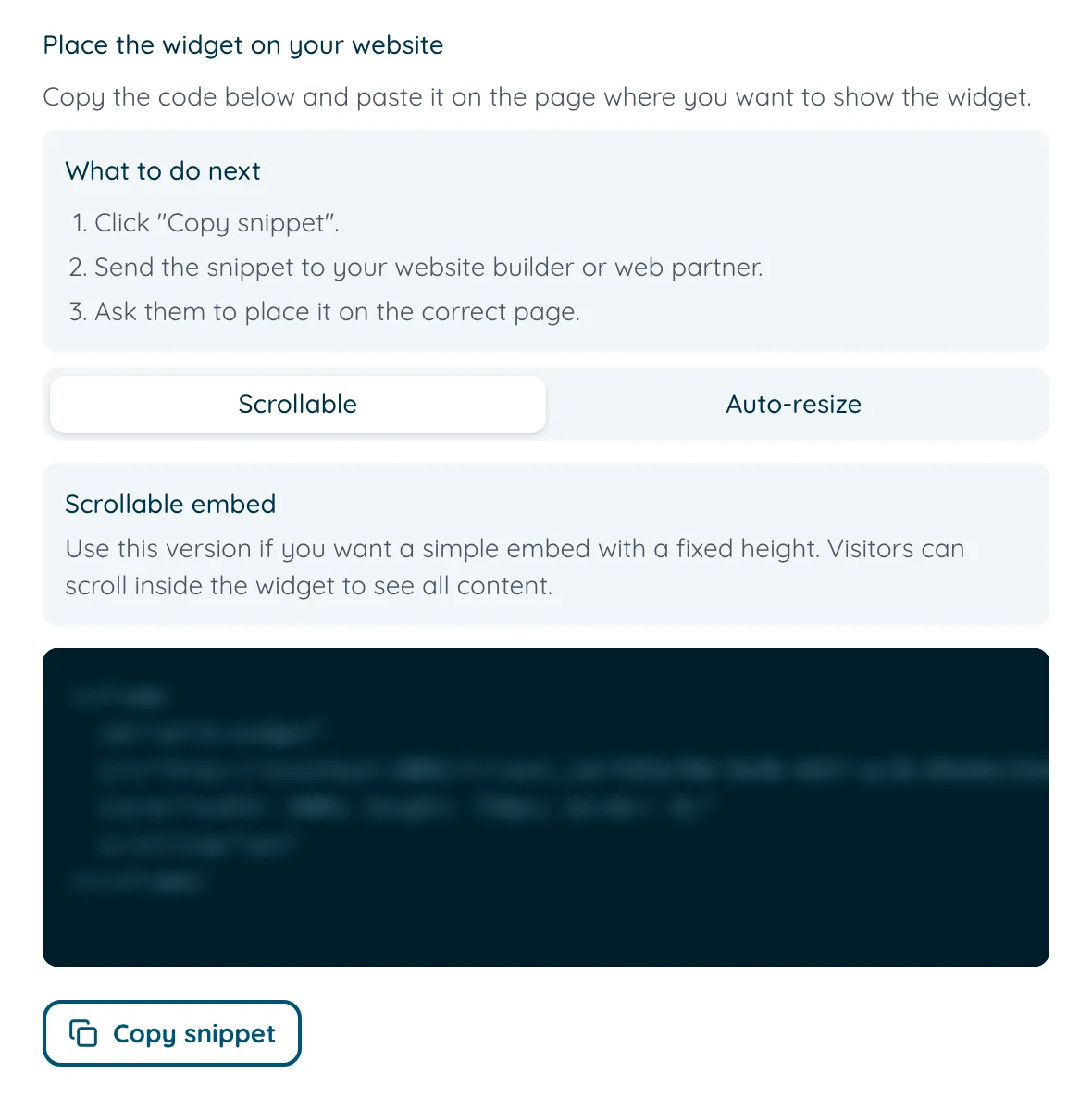
Choose how the widget fits on your page:
- Auto-resize: the widget grows with its content. Recommended if you can add a small script to your page.
- Scrollable: the widget has a fixed height, and visitors scroll inside it.
Choose Copy snippet.
Send the snippet to whoever builds your website. Ask them to place it on the right page.
On the right, Live preview shows how the widget will look.
Each snippet shows one renovation. Want to show another property? Copy the snippet from that renovation. Does your website software ask for a renovation ID instead? Use Copy renovation ID.
Change your websites
An Owner or Admin can change the websites later:
- Choose your name at the bottom left.
- Choose Organisation.
- Go to Console.
- Choose Clients.
Revoking the widget client stops every widget on your websites.